
Break Thirty
Published on
January 28, 2026
.svg)



Running local Google Ads means showing your store addresses right in the ad.
This is done with location assets (formerly called location extensions) that pull data from your Google Business Profile (GBP) or affiliate feeds.
But what if a store closes or moves?
Outdated listings can waste budget and confuse customers – you could be paying for clicks that go nowhere.
Google Ads lets you remove unwanted store locations in a few ways.
The key is figuring out how your locations were added and then deleting them at the source.
If you run an ad for a closed store or the wrong address, you’ll burn money and annoy customers.
Failing to remove old store listings can lead to “confused customers” and wasted ad spend.
It also muddies your analytics, since you’ll be measuring foot traffic to locations you no longer serve.
In short, clean up closed or moved stores to make every ad dollar count.
By regularly auditing your store extensions and removing any invalid addresses, you keep ads relevant and budgets efficient.
First, understand that Google draws store addresses into your ads either from a linked Business Profile, a manual asset you created, or an affiliate/chain feed.
If all your store locations should be removed (for example, you’re pausing local ads or closing all branches), the fastest way is to unlink your Google Business Profile from Google Ads.
This stops every store address from showing up. Here’s how:
That’s it – unlinking your GBP will immediately drop all location extensions tied to it.
Your ads will keep running normally (just without any store info).
Be cautious: Google Ads Help warns that removing all location assets will disable store-visit conversion tracking and location-based bidding, so use this only if you really intend to remove all store info.
If only one or a few locations have changed, it’s better to remove them selectively.
Instead of unlinking everything, you can mark a single store as closed or delete it from the profile. To do this:
By closing the location in GBP, you avoid touching your entire account setup and keep the rest of your stores active.
If your store locations were manually added in Google Ads or if you use an affiliate/chain location extension, remove them on the Ads Assets page.
This is done from within Google Ads, and you can delete stores one by one without affecting your whole Business Profile link.
You can filter or search here for specific store locations tied to your ads.
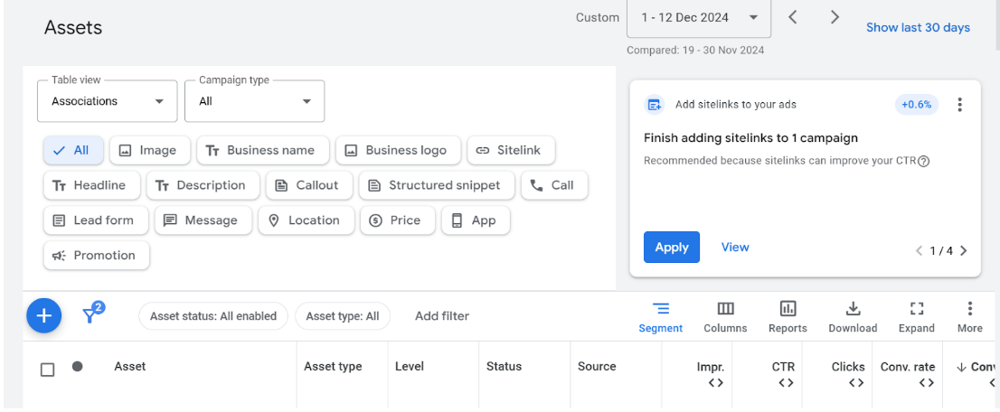
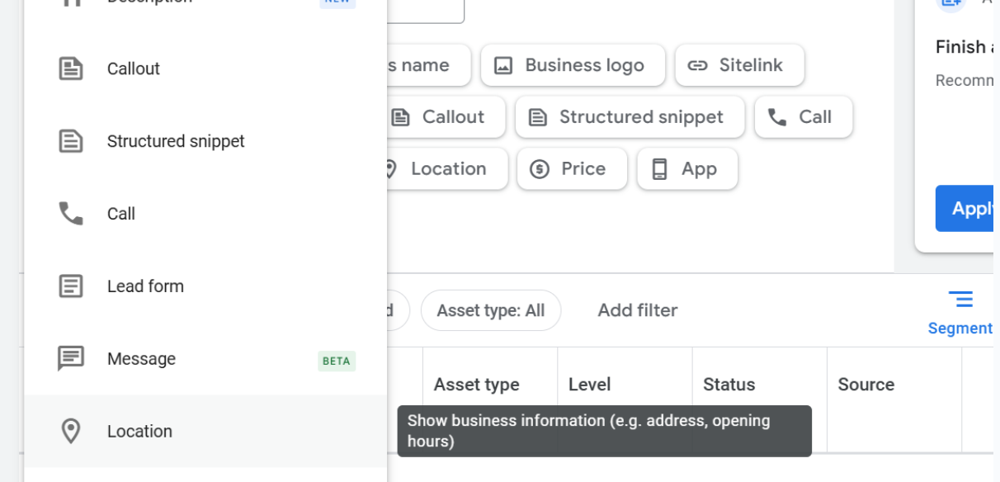
If you use affiliate store extensions – e.g. your products sold at chain retailers – switch the filter to Affiliate location and similarly remove unwanted retailers.
Removing an asset here immediately deletes it from your campaign (unlike unlinking, which stops syncing).
Your ad will no longer show the address or map pin for that store.
If you pause instead of removing, you can re-enable it later.
Large advertisers sometimes upload many stores via a location feed or use Google’s location groups.
If that’s your setup, remove stores by editing the feed:
This approach is only for bulk-managed locations – if you don’t use a feed, skip this step.
Finally, document your changes and consider doing them during low-traffic periods to minimize disruption.
While removing a store location is usually quick, Google’s systems can take a day or two to sync every change.
During that time, your ad might still briefly reference the old address until it is fully updated.
Does removing a store location pause my ads?
No. Your ads will continue running; they simply stop showing the removed store’s address. Google confirms that unlinking or removing a location does not pause campaigns.
How long does it take to remove a store?
Deleting a location asset in Google Ads takes effect immediately. If you close the store in Business Profile, allow up to about 24 to 72 hours for Google Ads to sync and stop showing it.
Can I add the store back later?
Yes – simply reverse the removal.
Re-link the Business Profile or re-enable the asset to display it again.
What about Quality Score or performance?
Removing an irrelevant location usually helps your ads (it cuts waste), but it might slightly change local metrics. Any Quality Score change would come indirectly from differences in click-through rates or relevance.
Can I remove just one store without unlinking everything?
Yes. Unlinking is all-or-nothing for GBP locations. To drop a single store, either delete its location asset in Ads or mark that branch closed in GBP. This leaves your other locations intact.
Keeping your Google Ads locations accurate is essential for local marketing success.
By unlinking or editing your Business Profile, or by deleting location assets in Ads, you can quickly remove any outdated or closed store from your campaigns.
Use the steps above to clean up old addresses and save wasted ad spend.
Once done, double-check with Google’s tools and keep an eye on your analytics to ensure everything is working smoothly.
With clean, up-to-date location extensions, your ads will reach the right people, in the right places – and drive better results.
We streamline Google Ads management, so you can focus on your business.
BreakThirty helps small business owners like you attract more customers through smart digital marketing.
Need help? We're just a click away to assist you!





How we can tailor your Shopify theme or build a brand-new store from the ground up.
© 2025 | All rights reserved.


