
Break Thirty
Published on
February 2, 2026
.svg)



Music can make your ads pop off the page (or feed). Adding the right soundtrack to your Facebook/Instagram video ads grabs attention and enhances your message.
In this guide, we’ll explain step by step how to insert music into your Meta Ads Manager video creatives, from choosing a compatible format to using Meta’s built-in Sound Collection.
Follow along to make your ads more memorable and on-brand.
A catchy or mood-fitting song can hook viewers in the first few seconds and reinforce your brand story.
Ads with music capture more attention and can improve watch time.
The right track sets the mood – upbeat for excitement, mellow for sincerity – helping your message stick.
A song that matches your brand personality makes the ad feel more authentic and cohesive.
By using music wisely, you can turn a plain video into an immersive experience that stands out on Facebook and Instagram.
Not all Meta ad formats allow background audio.
You’ll need to use one of the video-friendly formats.
Compatible formats include
Follow these steps in Meta Ads Manager to add music to your video ad creative.
Create or obtain a high-quality video for your ad.
If you already added a soundtrack using external editing, you can simply upload it; otherwise, you’ll add music in Ads Manager.
Log in and click Create New Campaign.
Choose an objective that allows video ads (for example, Brand Awareness, Traffic, or Conversions).
In the ad level, select a format that supports audio (e.g., Video, Stories, Reels).
Upload your video asset under the Ad Creative section.
If you’re using multiple images, consider converting them to a slideshow video so you can add music.
In the Ad Creative section, click Edit Video (or click Add Music in the creative editor).
This opens Meta’s video editor with an audio tab. Under the Music/Sound section, browse Meta’s Sound Collection – a library of free, licensed tracks.
You can preview and select a track that fits your ad’s tone. (If you have a custom song you already own rights to, some formats also allow uploading your own audio file.)
The Sound Collection is sorted by genre and mood. Try filters (e.g., “Upbeat” or “Instrumental”) to find a good match.
After adding a track, tweak its settings:
Use the slider to balance music volume against any voiceover or video sound. Ensure dialogue (if any) is still clear.
Cut the music to fit your video length or loop the clip if needed.
Apply fade-in/out effects for smooth starts and ends.
Preview your ad with the new soundtrack.
Confirm the visuals and audio sync well, then click Save or Apply.
Finally, finish setting up your ad (text, headlines, etc.) and publish the campaign.
Your music-enhanced ad will go to Meta’s review and then start running.
Meta provides a Sound Collection – a large library of royalty-free music and sound effects specifically cleared for Facebook/Instagram ads.
Highlights of this resource:
1. Completely free and licensed
All tracks in the Sound Collection are free to use in any Meta ad without extra licensing.
You won’t face copyright issues when picking from this library.
2. Thousands of choices
There are tracks across genres (pop, rock, classical, etc.) and moods (energetic, calm, dramatic).
You can search by keyword or browse categories to find something that fits.
3. Easy access
When editing your video in Ads Manager, opening the “Select Music” tool takes you straight to the Sound Collection.
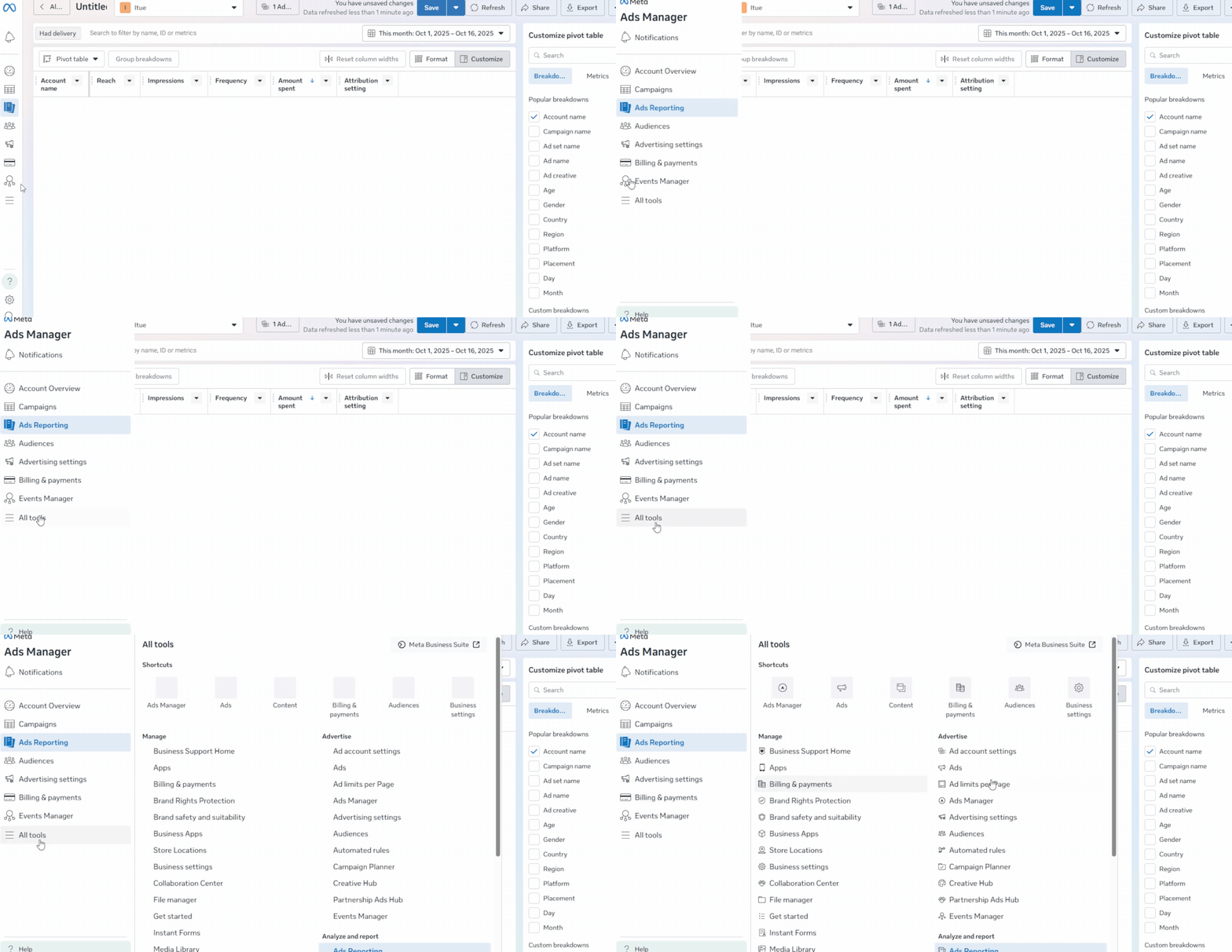
You can also access it in Facebook’s Business Suite (All Tools → Sound Collection) if you need to preview tracks outside of Ads Manager.
4. Use cases
Besides video ads, the Sound Collection can be used in Reels and even in organic content.
Just remember, if you use a track outside Meta’s ecosystem, check its license for that context.
By leveraging this built-in library, you save time and legal headaches.
Meta has already cleared these songs for ad use – no need to buy external royalties or worry about takedowns.
Once music is added:
1. Check the mix
Play the full ad and make sure the music complements rather than distracts from your message. Adjust the volume or change tracks if needed.
2. Finalize all details
Double-check your ad text, audience, and placements one last time.
3. Launch the campaign
Submit the ad. Meta will review it (including audio compliance) and then it will go live to your selected audience.
Your music-laced ad is now set to roll out. Monitor its performance in Ads Manager; you might A/B test different songs later to see which drives the best engagement.
What if your ad is already running and you want a new track?
Unfortunately, Meta locks the creative of live ads – you can’t simply edit the video or audio of an active ad. The workaround is:
This method preserves your targeting and stats but lets you “change” the music. (Be aware this effectively creates a new ad, so it re-enters Meta’s learning phase.)
Ultimately, the right soundtrack will feel like a seamless part of your message.
Take advantage of the Sound Collection’s previews and consider feedback from teammates or sample audiences when making your choice.
Can I use any song in my ad?
Only if you have the legal rights.
You should never use copyrighted music without a license in paid ads.
Instead, pick from Meta’s Sound Collection (which is pre-licensed for ads) or upload music you’ve paid for and have permission to use.
Which objectives allow music?
Any objective that supports video creatives will work. In Ads Manager, selecting objectives like Video Views, Engagement, or Conversions (with a video ad) lets you add music.
What if my video already has audio?
If your uploaded video file already contains music or voiceover, Ads Manager will include it by default. You can still overlay additional music using the editor, but be sure to balance volumes. If you need to completely swap out the existing soundtrack, you may have to edit the video outside Ads Manager and re-upload it.
Will adding music change my ad results?
Good music often improves engagement, but it can also affect metrics like click-through rate or conversion (positively or negatively). If you’re running multiple ads, consider using split testing to compare versions with and without music to see the impact.
By following these steps and tips, you can confidently add licensed music to your Meta Ads Manager campaigns.
The result is a more engaging, professional-looking ad that better captures your audience’s attention.
Let’s Grow Your Business Together
We streamline Meta Ads management, so you can focus on your business.
BreakThirty helps small business owners like you attract more customers through smart digital marketing.
Need help? We're just a click away to assist you!
Happy advertising, and may your next campaign be music to your ears (and conversions)!




How we can tailor your Shopify theme or build a brand-new store from the ground up.
© 2025 | All rights reserved.


