
Break Thirty
Published on
January 12, 2025
.svg)


Successfully running Facebook ads requires understanding payment processes in addition to campaign design.
If your payment method isn’t set correctly, your campaign won’t go live, or worse, it might get paused or rejected at the last minute.
All payments are handled through Ads Manager or Meta Business Manager, where you can add a payment method and monitor your ad spend.
Most guides out there gloss over the actual mechanics of payments or stick strictly to step-by-step instructions without context.
This guide explains how to pay for Facebook ads, including the accepted payment methods, how payments work, how to set them up, and troubleshooting tips.
Let’s jump into how you actually pay for a Facebook ad.
Facebook supports several common payment types, but the exact options can vary by country and currency.
In general you can pay for Facebook and Instagram ads using:
All major networks (Visa, Mastercard, American Express, Discover, JCB, etc.) are accepted.
Cards must have a valid CVV security code to be used.
Always make it your default payment method to avoid billing loops.
Pros
Cons
In many regions, Facebook lets you link a PayPal account to pay for ads.
PayPal can be linked directly inside Facebook Ads Manager.
But how does it work?
You authorize Meta to bill PayPal, and Ads charges PayPal when the billing threshold is reached or at month.
Pros
Cons
Availability varies and sometimes changes based on regional policy updates.
In supported countries, you can connect a bank account to be charged directly.
These allow Meta to pull funds directly (similar to how utilities are paid).
Some countries allow manual top-ups or local payment options (like a local ad credit or offline payment).
Meta supports local payment options, like:
These methods vary by location and are typically tied to prepaid funds.
When using these, your account switches to “available funds,” meaning you prepay an amount, and Facebook deducts ad costs from that balance.
Link whichever method works best for you.
If you have multiple valid methods, you can even add a backup card in case the primary one fails.
Here’s the high-level process for setting up a payment method and paying for Facebook ads:
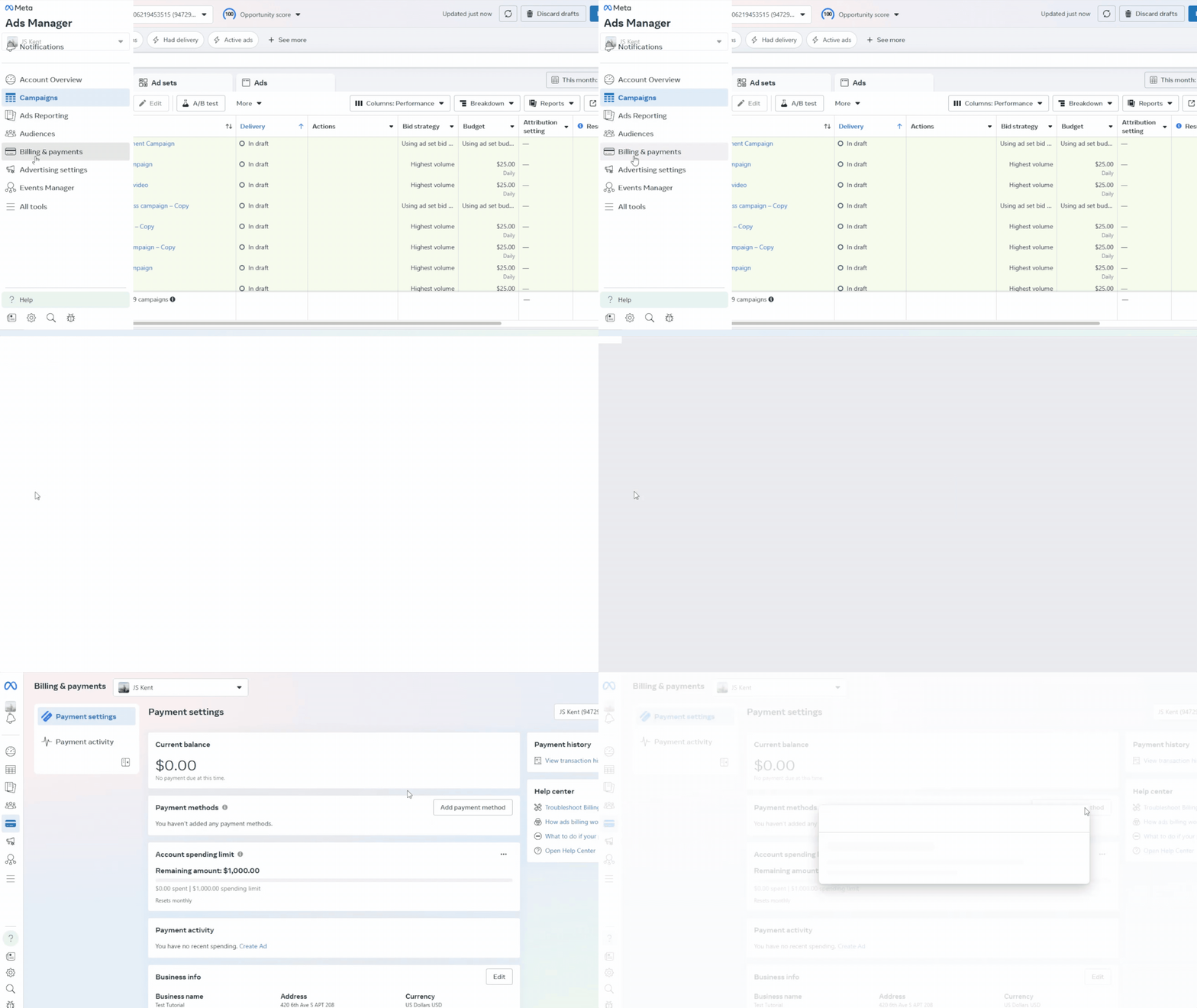
You only need to do this setup once per account (admins have permission to add methods). Now your account is ready to pay for ads as they run.
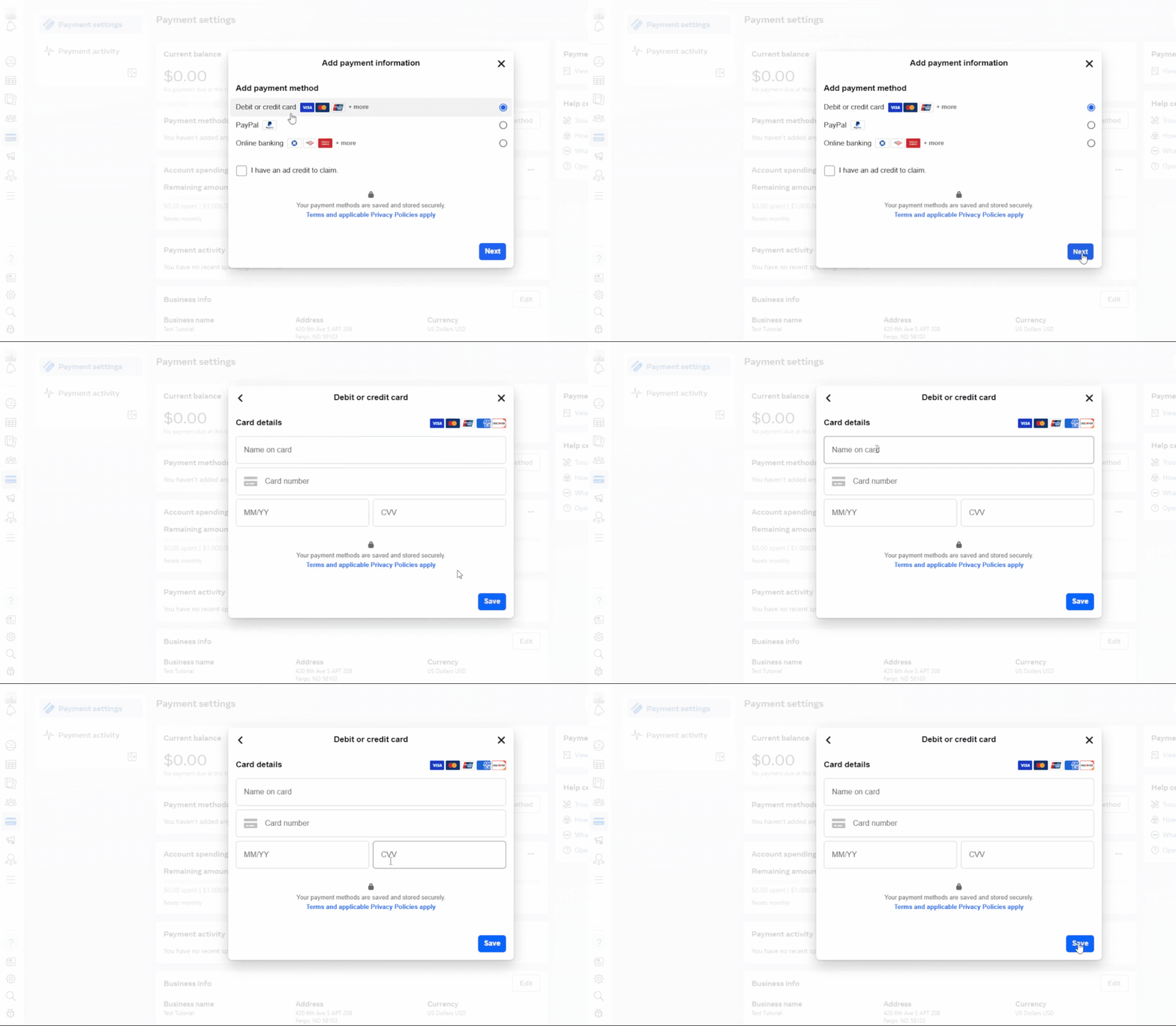
Facebook normally uses automatic billing, meaning it charges your payment method after your ads run.
There are two key moments when charges occur.
1. Payment Threshold
Each ad account has a spending threshold.
When your ad spend reaches that amount, Facebook automatically bills your card.
For example, you might reach a $25 or $100 threshold (the specific number increases over time as you successfully pay).
2. Monthly Invoice
At the end of each monthly billing cycle, Facebook charges any remaining balance for the month.
In other words, if you didn’t reach the threshold before the month ended, you’ll still get billed for that month’s spend.
3. Early or Manual Payment
If you prefer to pay off your bill before Facebook automatically charges, you can use the Pay Now option.
In Payment Settings, Facebook will show any current due amount along with a “Pay Now” button.
Clicking that lets you immediately charge your card or another saved method for the outstanding balance.
Be aware that if you don’t pay the due balance, your ads will pause.
Facebook gives a 30-day grace period for unpaid balances.
If the balance remains unpaid after 30 days, the account may be disabled.
If your payment fails, Meta usually pauses your ads immediately.
Follow these steps to resolve common issues and get your campaigns back up and running.
Before trying a new card, check the following basics.
1. Card Details
Verify that the card number, expiry date, and CVV are entered correctly.
A simple typo is a frequent cause of failure.
2. Funds & Expiry
Ensure the card has sufficient funds and has not expired.
3. Bank Restrictions
Many banks block international transactions or charges from "Meta/Facebook" by default.
Call your bank to authorize these payments.
4. Account Limits
Some cards have a limit on how many different ad accounts they can be linked to.
If you hit this limit, you may need a different card.
1. Payment Method Loop
If Facebook keeps asking for a payment method you’ve already added, go to Ads Manager → Billing & Payments and ensure you have set a Default payment method.
2. Disabled Methods
If a method is disabled due to "unusual activity," it is often a security flag.
Use an alternative method (like a business credit card or PayPal) and contact Meta Support to verify your identity.
1. Add a Backup Method
Always have a secondary card or PayPal account linked.
If your primary method fails, Facebook will automatically bill the backup to prevent your ads from pausing.
2. Clearing Outstanding Balances
Once you’ve fixed the issue or added a new card, use the "Pay Now" button in your Billing settings to settle the balance.
Your ads will usually resume automatically once the payment clears.
What if I only want to promote one post or page?
Facebook still requires an ad account with a payment method.
You’ll go through the same process: set up the ad, and Facebook will bill the method you saved in your ad account.
Which payment method should I use?
Use whichever is most convenient and accepted in your region. Credit/debit cards are the simplest.
If you prefer not to use a card, PayPal is a good alternative.
For businesses in some countries, linking a local bank account is possible.
Gift cards or coupons can sometimes apply only to certain promotions (contact Facebook support for details on coupons).
Can I pay with Apple Pay or Google Pay?
Facebook may accept Meta Pay (Facebook Pay) linked to your account, but generally it charges the methods saved in Ads Manager.
Using PayPal is the recommended wallet option for many advertisers.
How do I get an invoice or receipt?
Every time Facebook charges your card, it logs an invoice.
In Ads Manager’s Billing section, you can download PDFs of those invoices.
Also, a receipt is emailed to the address associated with your account after each charge.
Paying for Facebook ads doesn’t have to be confusing.
It’s mostly about getting your payment methods set up correctly and understanding how Meta bills you.
By following these steps and tips, you can smoothly manage payments for your Facebook ads.
Remember to keep your billing info up to date and monitor your ad spend.
With the right setup, paying for Facebook ads is seamless – letting you focus on creating great campaigns and reaching your audience.
Setting up payments is just the first step.
If you want ads that actually convert without wasted spend, paused campaigns, or billing headaches, our paid social team can help.


How we can tailor your Shopify theme or build a brand-new store from the ground up.
© 2025 | All rights reserved.


