
Break Thirty
Published on
December 12, 2025
.svg)


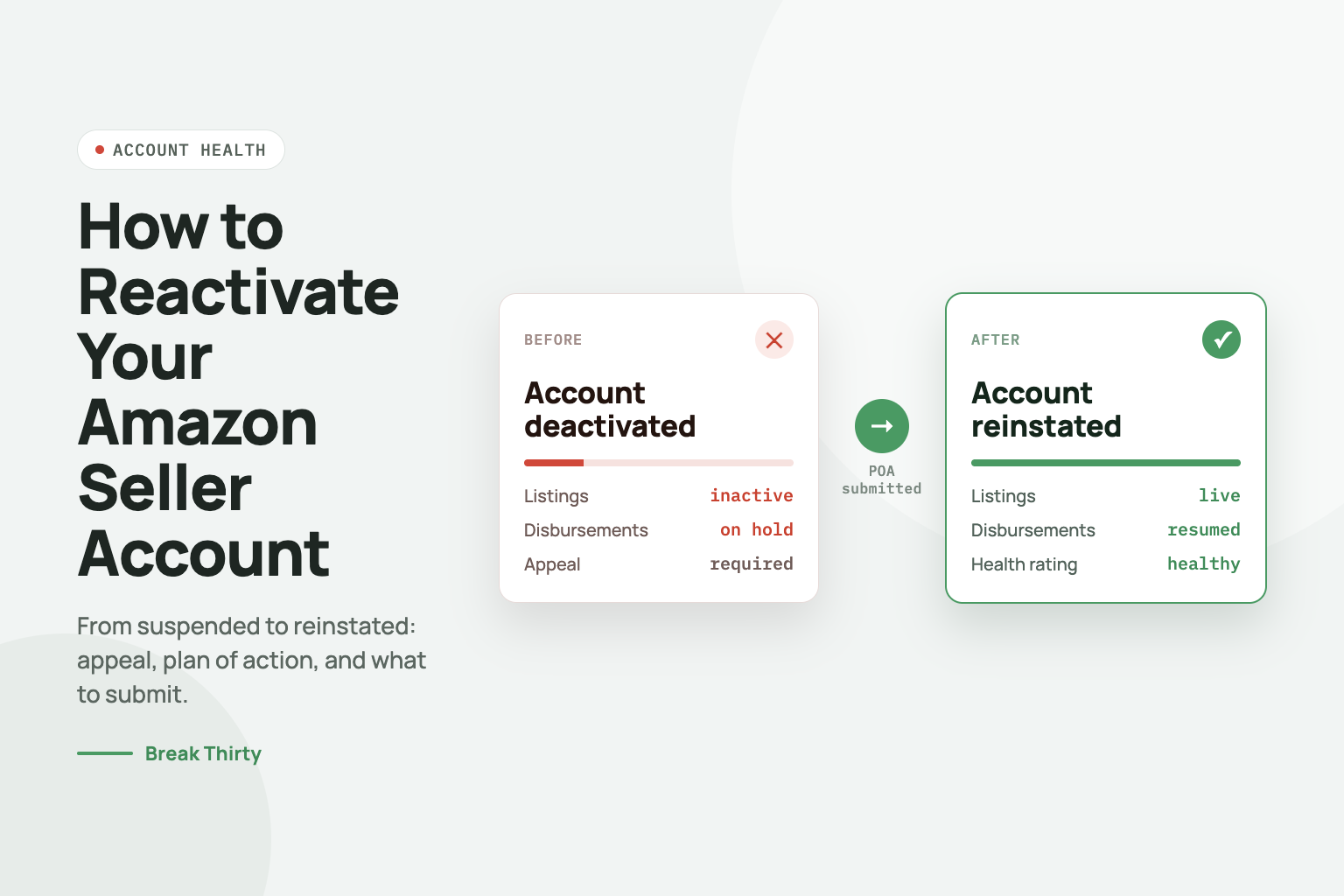
If your Amazon Seller Central account is disabled, you can reactivate your account by simply following Amazon's guidelines.
First, identify why your account was suspended or deactivated.
Amazon enforces strict policies to protect its customers; it “doesn’t just suspend accounts unless there is a solid reason.
Even using multiple seller accounts or providing false information can trigger a ban.
Once you know the cause, you can craft the proper response.
You’ll typically need to submit an appeal (a Plan of Action) that explains and fixes the issue.
The rest of this guide walks through the exact steps to regain access, whether your account was suspended for policy reasons or simply deactivated due to inactivity.
We’ll cover writing a strong appeal, the reactivation process, timelines, and tips to avoid future problems.
Amazon only suspends or deactivates seller accounts when there’s a significant issue.
Here are the most common reasons.
1. Policy or Product Violations
Selling Amazon-prohibited or restricted items (for example, illegal drugs, certain electronics, weapons, etc.) will get your account flagged.
Misrepresenting products or breaking listing rules (like using copyrighted images) also leads to suspension.
2. Performance Problems
Failing to meet Amazon’s performance targets can prompt action.
This includes high-order defect rates, late shipments, A-to-Z guarantee claims, or consistently negative feedback from buyers.
Even one severe A-to-Z claim or policy complaint can trigger a review.
3. Account Information Issues
Using multiple seller accounts or providing incorrect/false information (business details, contact info, tax IDs) can get you banned.
Amazon also suspends accounts that haven’t completed required verification (identity checks, tax info, etc.).
4. Customer Complaints
Excessive A-to-Z claims or reports of unsafe products often lead Amazon to disable an account to protect buyers.
Once you know the cause, you can address it in your appeal and correct any violations.
If your account was suspended (for a policy or performance issue), reactivation means submitting a detailed appeal to Amazon’s Seller Performance team.
Amazon expects a professional Plan of Action that explains the problem and how you fixed it.
Here’s how to proceed:
1. Locate the Suspension Notice
Log in to Seller Central and go to Performance → Performance Notifications.
Open the suspension or deactivation notice sent by Amazon.
This will often summarize the issue. Take notes on every point Amazon raised.
2. Prepare Your Response
Before appealing, gather any evidence or records that show how you’ve corrected the issue (for example, supplier invoices, updated QC processes, customer service logs, etc.).
You’ll need these for your Plan of Action.
3. Submit an Appeal (Plan of Action)
In the Performance Notifications page, click Appeal on the relevant notification.
You’ll be prompted to fill in details about the incident and your corrective measures.
When crafting your appeal (Plan of Action), make it structured and factual. For example
4. Follow the Steps in Seller Central
The appeal form will guide you to enter your Plan of Action and any required information.
Explain what caused the problem, what you’ve done to fix it, and how you’ll prevent it in the future.
Attach supporting documents if requested (invoices, screenshots, etc.).
5. Update Your Listings and Operations
While waiting, review your active listings.
Remove or fix any content that violates Amazon’s policies.
Improve your inventory and order processes now to ensure no future lapses.
Amazon advises sellers to have all listings fully compliant while an appeal is under review.
6. Wait for Amazon’s Response
Make sure to monitor your email and Seller Central for updates.
If Amazon asks for more information, reply promptly.
Use a professional tone, admit mistakes without excuses, and emphasize your commitment to compliance.
By following these guidelines and including all requested details, you give yourself the best chance to get your selling privileges restored.
If your appeal is well done, Amazon often reinstates accounts quickly.
If your account was deactivated due to inactivity (you hadn’t sold anything for a while), the process is simpler.
Amazon allows you to reactivate by updating your account information and verifying your identity. Here’s what to do:
1. Go to Account Info
Log in to Seller Central and click Settings → Account Info.
You should see a red Reactivate Account button or banner. Click it
2. Update Payment and Info
Amazon may require you to add or update your payment method.
Enter a valid credit card (a credit card, not a debit card, often works best) as requested.
3. Verify Your Identity
Amazon will prompt you to re-verify your identity.
This typically involves uploading documents.
Commonly required documents include a government-issued photo ID and a recent bank or credit card statement.
Follow the on-screen instructions to upload what’s needed.
4. Submit the Reactivation
Once you’ve added the card and uploaded any required documents, submit the reactivation request.
You should receive an email confirmation when Amazon completes the process.
Seller-support staff confirm that this is the official reactivation path.
In many cases, simply updating the card and documents will do the trick.
If you don’t see where to upload documents, make sure you clicked the red “Reactivate Account” link.
Some sellers report an endless loop of verification emails; if that happens, try deleting and re-adding the credit card.
In practice, once you submit the necessary info, Amazon often reactivates the account within a day or two.
If you submitted a proper appeal, Amazon may respond in as little as 24 to 48 hours.
Straightforward reactivations (like adding a credit card for inactivity) are often resolved within 1 to 2 days.
However, Amazon gives itself up to a week or more for complex cases.
Be patient and check your email/Seller Central regularly.
If your appeal is denied, carefully revise and resubmit it; sometimes it takes multiple attempts (or additional documentation) to satisfy Amazon’s requirements.
Once you get your account back, take steps to avoid another suspension.
1. Maintain Compliance
Regularly review Amazon’s policies (they update often).
Make sure your product listings, images, and descriptions comply with rules.
2. Monitor Performance
Keep an eye on your Account Health and metrics (Order Defect Rate, Late Shipment Rate, etc.).
Aim to exceed Amazon’s targets. Respond quickly to customer inquiries and complaints.
3. Stay Verified
Keep your account information up to date.
Renew documents (ID, tax info) before they expire.
Use Amazon’s identity verification tools when prompted.
4. Respond Promptly
Amazon usually expects you to reply to any compliance or performance notification within 72 hours.
Don’t ignore messages from Seller Performance.
5. Diversify Channels
Consider selling on multiple platforms (e.g. eBay, Shopify) so you aren’t completely dependent on Amazon.
This way, one suspension won’t halt your entire business.
By following Amazon’s rules closely and operating professionally, you can keep your seller account in good standing.
Reactivation is just the beginning. The reason suspensions happen is a lack of ongoing, professional oversight.
Our Complete Amazon Seller Central Management Services cover every aspect of your operations, turning your account into a compliant, profitable, and stress-free asset.





How we can tailor your Shopify theme or build a brand-new store from the ground up.
© 2025 | All rights reserved.


