
Break Thirty
Published on
November 27, 2025
.svg)


Ever wished you could see exactly what changed in your Amazon seller account – who edited a listing, changed a price, or updated inventory?
Unfortunately, Amazon doesn’t provide one unified “master log” of every account action.
Instead, it offers specific tools you can use to track different kinds of changes.
By knowing where to look in Seller Central, you can review listing edits, price updates, and even support case history.
In this guide, we’ll show you how to access listing change history, check price updates, find your Case Log, and use other tricks to monitor activity on your account.
Amazon’s Seller Central includes a Change History tool for individual listings.
This feature logs each update made to a product detail page – for example, changes in title, description, price, inventory, images, or variations.
Amazon Listing Change History is a tool in Seller Central that tracks all updates made to your product listings.
It logs changes like titles, descriptions, prices, images, inventory, and variations, along with timestamps and user details.
You can go back and see when your listing was altered and what the values were before and after the change.
To access this for a specific product.
This opens the change log for that SKU.
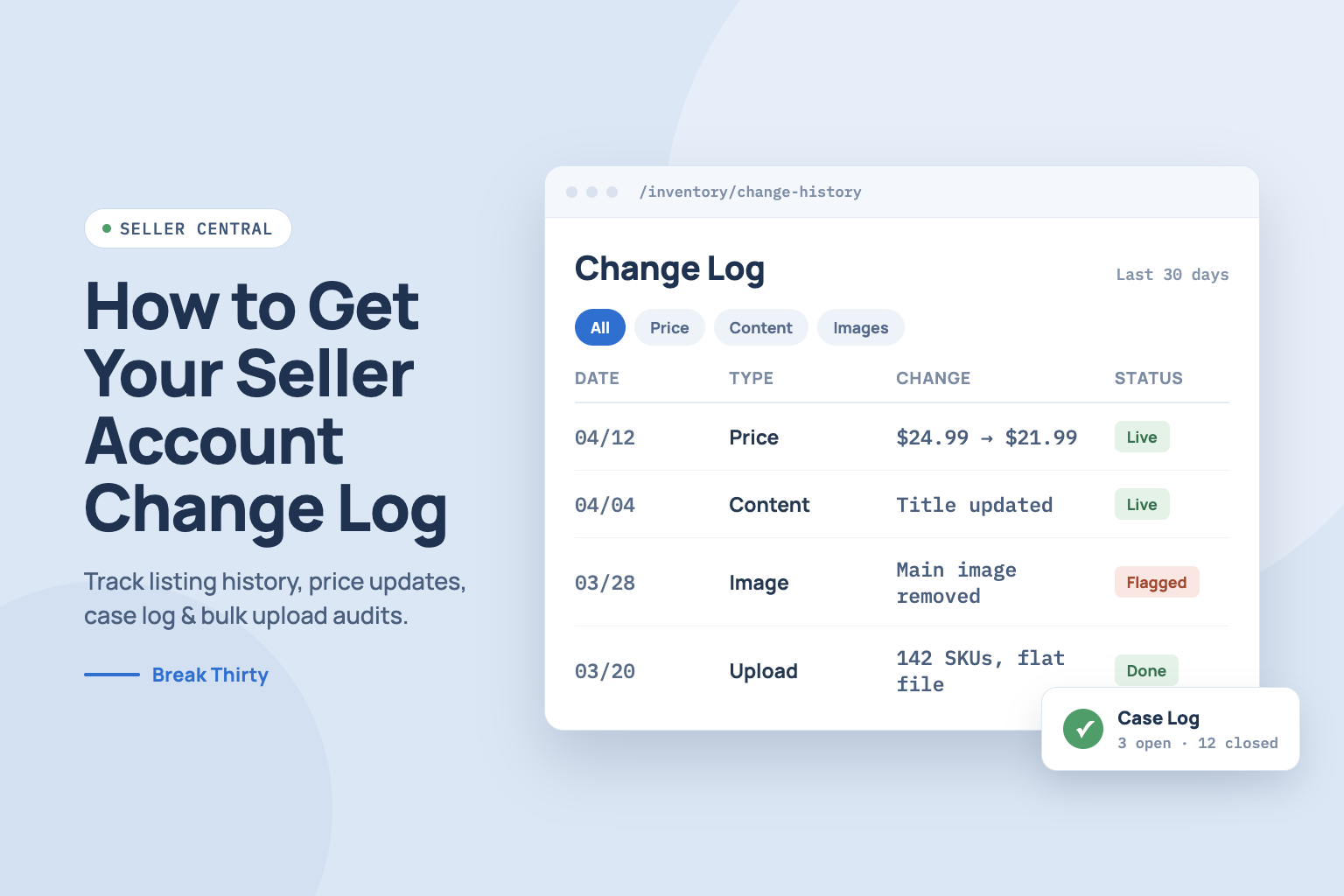
Each entry shows the date/time, the change type (e.g., “Price change” or “Image update”), the user or system that made the change, and the old vs. new values.
You can often filter the records by date range or change type (e.g., show only price changes or only content edits)
For example, if you only want to see price updates, select the Price changes filter.
This helps you quickly spot any unexpected edits.
By regularly checking Change History for your key ASINs, you can spot mistakes or unauthorized edits quickly.
If you see something off (say, a price dropped to $1), you can revert the change or correct it immediately.
In fact, Amazon even lets you restore a previous version of your listing if needed.
But here is the thing, Change History is per-listing.
It does not give a global log of everything in your account.
If you have many products, you must check each one individually.
Amazon does not have a single report that shows “everything” that happened across your entire seller account.
In other words, there’s no built-in audit trail that covers all user actions on all listings.
If you use Amazon’s Automate Pricing tool for dynamic repricing, it includes a built-in history feature: Amazon’s automated pricing can display up to 30 days of price history for each SKU in that program.
However, if you don’t use Automate Pricing, or if price changes were made manually or by a bulk upload, the best place to check is still the Change History for that listing.
Every time a price is updated via Manage Inventory, API, or file upload, it should appear as a Price change entry there.
Here is a quick tip: if a large number of SKUs have had prices changed (e.g., via a flat-file bulk update), you can go to Manage Inventory > Add Products via Upload > Check Upload Status in Seller Central to review the upload results.
The upload history report will show which file was processed and how many listings were updated.
While this report doesn’t itemize each price change, it confirms whether a bulk update went through and if there were errors.
For more granular price tracking, sellers often use third-party tools like Keepa or CamelCamelCamel.
Those can graph historical prices and send alerts.
But for internal auditing, use Seller Central’s tools first: check Change History for each impacted listing, and check your Upload History if you ran a flat file or feed.
Amazon's Seller Central Case Log lets sellers track and manage their support cases with Amazon, providing an organized view of their communication history.
Besides listing edits, you might want to review your Amazon support cases (e.g. reinstatement requests, shipping issues, etc).
Amazon provides a Case Log in Seller Central to help with that.
The Case Log is essentially an archive of all support tickets (cases) you’ve opened.
It shows each case’s ID, status, date, and summary of communication.
To find your Case Log.
Once open, you’ll see all of your open, pending, and closed cases.
You can filter or search by Case ID, date, or status (Open, Pending, Closed)
Clicking a case shows the full thread of messages.
The Case Log doesn’t show what changed in your account; rather, it shows what issues you’ve asked Amazon about and what their responses were.
Still, it’s a useful “log” of your interactions with Seller Support.
For example, if you submitted a case about a missing image or account suspension, you can go back later to review Amazon’s reply.
To open a new case (if needed), go to Help > Contact Us in Seller Central.
Fill in the details, and once submitted, that case will immediately appear in your Case Log.
Many sellers ask: “Can I see who in my team made a change?”
The short answer is: Not directly.
Amazon’s Seller Central does not provide a detailed audit trail of every user action.
The Change History will often just say it was changed by “Seller Central User” or an account name, but not necessarily by which individual.
Here’s what Amazon does not give you out of the box.
1. No comprehensive account log
There’s no single report showing “user X did Y to listing Z at time T.”
If you have multiple users (or third-party tools) working on your account, Amazon won’t show each person’s audit trail in one place.
2. No user permissions log
Seller Central’s User Permissions section lets you add/remove users, but even its history is limited.
You can see if a user was invited or removed, but not everything that user did.
Because of this, it’s wise to control access carefully.
Only give full editing rights to people you trust, and use more restrictive roles (like Read-Only) for team members who just need to view.
If something goes wrong, you can use the Change History per listing to narrow down when the unwanted edit happened, and then check who had access at that time.
1. Upload History
If you change listings by uploading flat-file inventories, go to Add Products via Upload > Check Upload Status to see past uploads.
This shows batch IDs, dates, and any errors.
It can help confirm whether a bulk update was applied.
Check your Upload History, especially if you suspect a mass price change.
2. Advertiser Console
Note that Amazon Advertising (Ads console) has its own change history (for ads/campaigns), but that’s separate from Seller Central.
3. Account Health & Notifications
Sometimes Amazon sends notifications when they automatically modify something (e.g. a suppressed or converted listing).
Keep an eye on your Notifications (bell icon) and Performance > Account Health dashboard for alerts.
They’re not a log, but useful signals.
In short, Amazon does not offer a single unified “account change log.” Instead, you can piece together history using.
By combining these tools, you can effectively audit what’s happening in your seller account.
For example, if an image was deleted or a price changed unexpectedly, open the product’s Change History to see when it happened and by whom (or by which API).
For issues involving Amazon’s systems, check if any notifications explain an automatic action.
Remember, keeping your account secure and well-organized is the best protection.
Limit admin rights, use strong passwords and 2FA, and regularly review your listings.
With the Change History and Case Log features, you have powerful tools to stay on top of your Amazon business – even if there isn’t a one-click “account activity report.”
Need hands-off Amazon account management? We’ll monitor everything so you don’t have to.
Stop dealing with Amazon headaches alone; let us manage your Seller Central





How we can tailor your Shopify theme or build a brand-new store from the ground up.
© 2025 | All rights reserved.


