
Break Thirty
Published on
March 6, 2025
.svg)




A Google Business Profile (formerly Google My Business) listing makes your business appear on Google Search and Google Maps.
Customers searching for products or services you offer can see your name, address, hours, phone number, and reviews right in the search results or map (for example, the map image above shows location pins and a business profile with ratings).
In this guide, we’ll walk through the exact steps to list your business on Google and verify it, so you get found by local customers.
Before your business appears on Google, you must either create a new Business Profile (if Google doesn’t already have one) or claim an existing listing.
You’ll need a Google Account (Gmail or any email) to do this.
Follow these steps.
1. Sign in to Google.
Use an existing Google account or create one if needed.
You need a Google Account to sign up for a Business Profile.”
This account will be used to manage your listing.

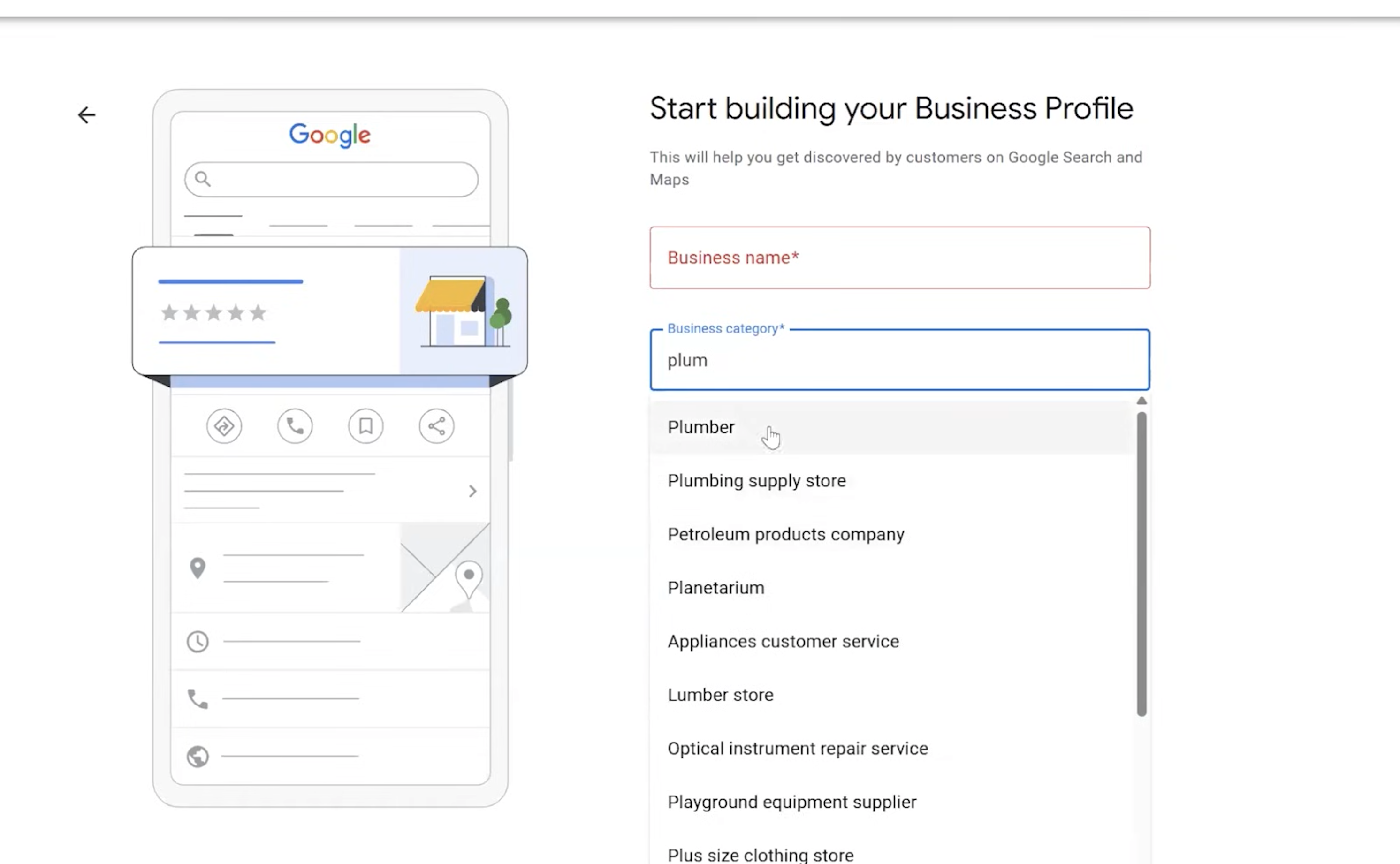
2. Add a new profile (if none exists).
If your business is new to Google, go to business.google.com/add and click “Add your business to Google.”
Then enter your business name, address, category, phone number, and any other details.
Follow the on-screen prompts to fill in your information.
In most cases, you’ll be asked to verify ownership (see next section).
3. Claim an existing listing (if one exists).
If Google or someone else already created a profile for your business (sometimes Google auto-generates a basic listing), you need to claim and verify it.
On a computer, open Google Maps and search for your business name and city.
When your business appears, click “Claim this business” (or “Own this business?”) and then “Manage now.”
Google will guide you to choose a verification method.
You can also do this on mobile: open the Google Maps app, search your business, tap the listing, then tap “Claim this business” under the “About” section and follow the steps.
By either creating a new profile or claiming an unverified one, you set the stage for verification.
Google won’t display your profile publicly until it’s verified, so the next step is crucial.
Verification proves to Google that your business is real and that you own it.
Google offers several verification methods, which can vary based on business type and region.
Follow the on-screen instructions for the chosen method.
Once verified, Google publishes your profile so customers can find it.
Typically, after entering the code, your listing will appear on Google Search and Maps within a few days
Common methods include.
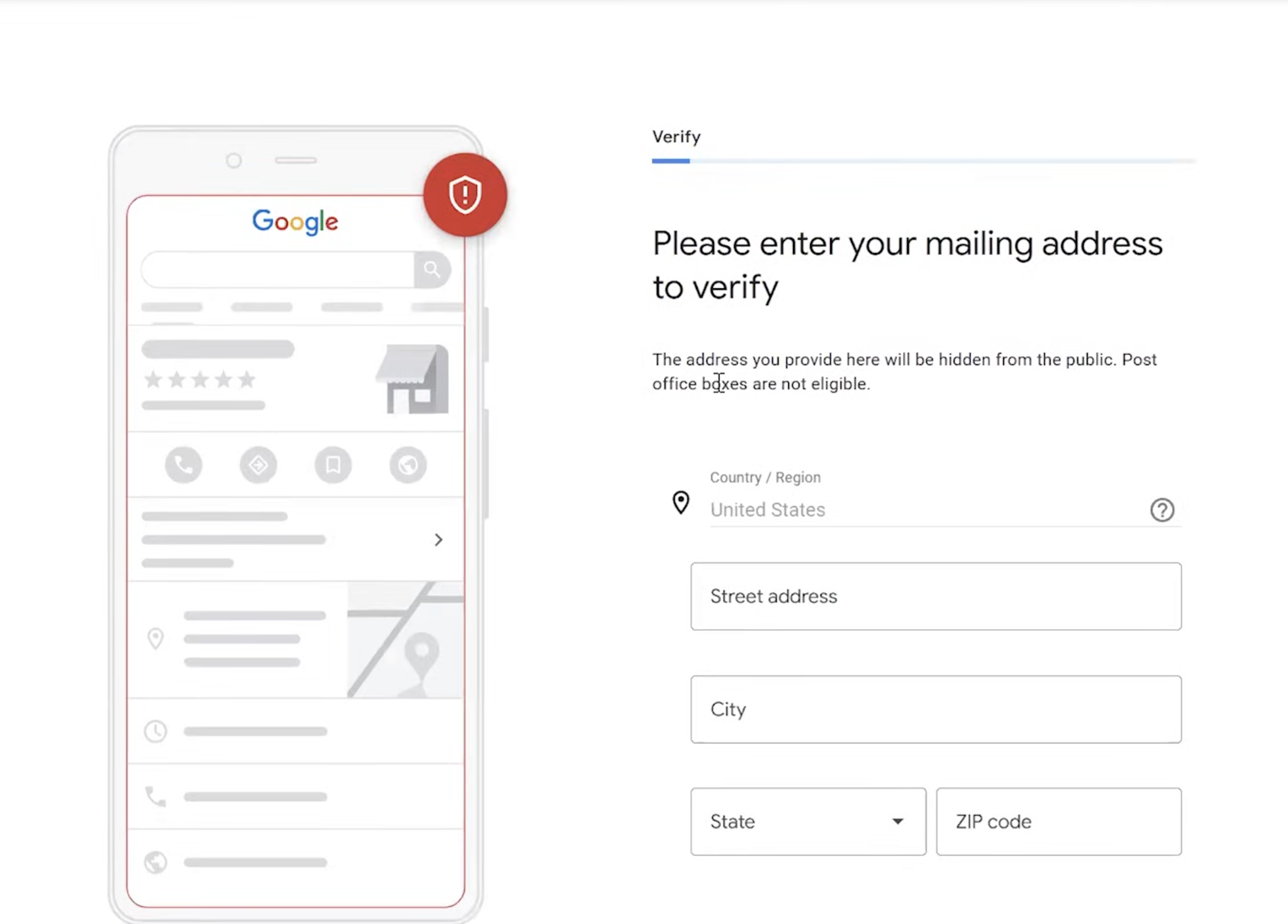
1. Postcard by mail
If verification through mail is available… Google will mail you a verification code to your business address with a PIN code.
It usually arrives within 5 days.
When you receive it, sign back in to your Business Profile at business.google.com, click “Verify”, and enter the code.
2. Phone or SMS
Some businesses are eligible to verify instantly by phone.
If offered, Google will call or text your business phone with a code.
Just answer or open the text and enter the code on your profile.
3. Email
In rare cases, Google may allow email verification.
You would receive a code at your business email address to enter into your profile.
4. Video or instant verification
For certain business categories, Google now offers live video verification or immediate verification if you’ve already verified your website with Google Search Console.

Getting listed is just the first step.
To stand out and attract customers, fully complete and optimize your profile.
In your Business Profile, add a clear business name, exact address, phone number, hours of operation, and website.
Be accurate and consistent with what’s on your website.
Make sure your address follows Google’s address guidelines.
Select the most specific category that describes your business (e.g. “Bakery” rather than just “Food”).
This helps Google match you with relevant searches.
Use keywords naturally (for example, mention key services or products you offer).
Tell customers what makes your business unique in a friendly tone.

Upload high-quality photos of your storefront, interior, products, or team.
Images grab attention and build trust.
A photo of your shop or logo helps customers recognize you.
You can also add a short business introduction video.

Google Business Profile lets you create Posts (announcements, offers, events).
For example: “New menu items this week” or “Holiday sale – 20% off”. This gives customers timely info.
Google itself encourages using posts and engaging with your audience via the Business Profile.
Politely ask happy customers to leave reviews on your profile.
When new reviews appear, respond promptly – thanking for praise or addressing issues.
Positive reviews and active engagement signal to Google that your business is reputable.
If available, mark attributes (e.g., Black-owned, LGBTQ+ friendly, Wheelchair accessible) and list specific services or menus.
These details can appear on your profile and appeal to searchers.
By keeping your profile complete and up-to-date, you ensure that Google shows the most useful information to customers.
An optimized profile helps your listing rank higher in local searches and encourages people to visit or call your business.
Once your Business Profile is set up and verified, you can edit and update it anytime.
Google has made it easy to manage your listing right from Google Search or Maps.
Sign in to the same Google account you used to create your profile.
Then search for your business name (or just type “my business”).
If you have a listing, a profile panel will appear (on desktop it’s to the right of results; on mobile it’s the top result).
You should see an “Edit profile” or “You manage this profile” link.
Click it to update your info. You can even search “my business,” and Google will bring up the business you own.
On your phone, open Google Maps, tap your profile icon, then tap “Your Business Profile.”
This switches your app to show your business listing.
From here, you can edit details, add photos, or respond to reviews just like on Search.
You can also manage your profile at business.google.com – Google’s official dashboard for Business Profiles.
Note: If you manage multiple locations or are an agency, Google provides a separate Business Profile Manager interface.
Google no longer requires a special “Google My Business” app; all management can be done through Search, Maps, or the web.
In fact, Google encourages single-location business owners to manage their listing directly in Search or Maps.
Just remember to stay logged into the Google account tied to your profile whenever you want to make updates.
How long until my profile shows up?
After you verify, your profile usually goes live within a few days.
If you choose postcard mail verification, it typically arrives in about 5 days.
Once you enter the code, Google will start displaying your profile. (Other methods like phone or email are instant.)
How to create a Google Business Profile if I don’t have a storefront?
No problem. Google supports service-area businesses.
These are businesses that visit or deliver to customers (like plumbers or pet sitters) and don’t serve customers at a public address.
You can set your profile as a service-area business and list the geographic areas you serve.
Customers searching in those areas will still find your profile. (You must still provide a real address for verification, but you can choose not to display it.)
Why isn’t my business showing up on Maps/Search yet?
Make sure you’ve completed verification.
If you’ve submitted your verification code and waited a few days, Google should index your profile.
Also, check that your business info meets Google’s guidelines; inconsistent info or duplicate listings can cause issues.
When your Google Business Profile is properly set up, verified, and filled with accurate details, your business becomes easier for customers to discover through Google Search and Google Maps.
If you’ve followed the steps in this guide, you’ve already taken a major step toward improving your local visibility.
But maintaining and growing that visibility often requires ongoing work, from managing reviews to optimizing your listing for local search.
If you’d like help getting your Google Business Profile fully optimized or improving your local search presence, our team can help.


How we can tailor your Shopify theme or build a brand-new store from the ground up.
© 2025 | All rights reserved.


